For schools
Readable for Chrome is designed for managed deployment — pre-configured for the way your school works, locked where it needs to be, and respectful of student privacy by design.
One toolbar, every reader.
Readable covers the breadth of accessibility needs you typically support — without you having to deploy multiple tools and reconcile their settings.
Dyslexia
OpenDyslexic and Atkinson Hyperlegible fonts, adjustable spacing, colour tints, tracking ruler. The combinations students typically benefit from, in one place.
Visual stress and Irlen
Full-screen colour tints with adjustable opacity, free-form colour picker. Students can match the tint to what works for them, not what the tool happens to ship with.
Low vision
Forced high-contrast mode, scalable text size, and TTS using the Chromebook's built-in voice library — including Google's high-quality natural voices.
EAL learners
Word-level dictionary lookup with phonetic pronunciation. OCR in six languages built in. Predictive typing with optional symbol support.
ADHD and focus difficulties
Reading ruler with dim band narrows visual focus to the current line. Sixteen ambient soundtracks for steady, low-distraction background.
Physical access
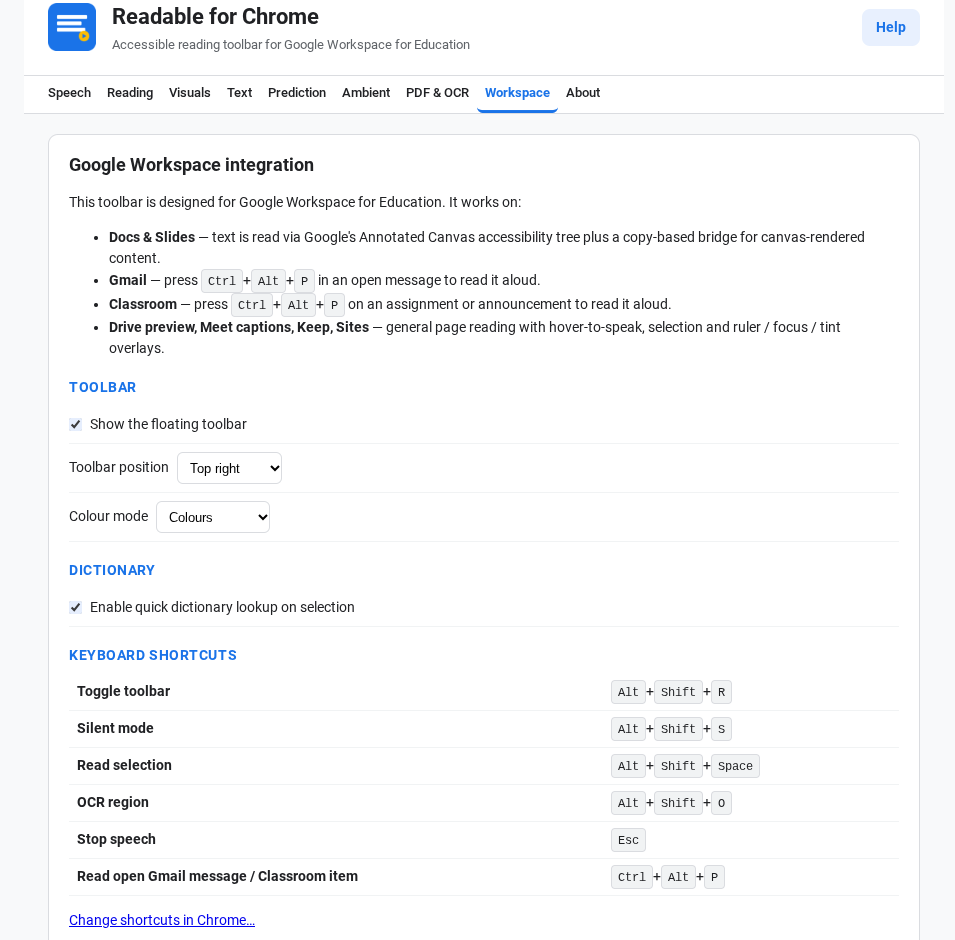
Hover-to-speak with adjustable delay and modifier-key gating. Full keyboard shortcuts for all primary actions. Toolbar position chosen by the user.
Designed for managed deployment.
Force-install via Google Admin Console, configure once, scope by OU. No per-device setup, no per-student login.
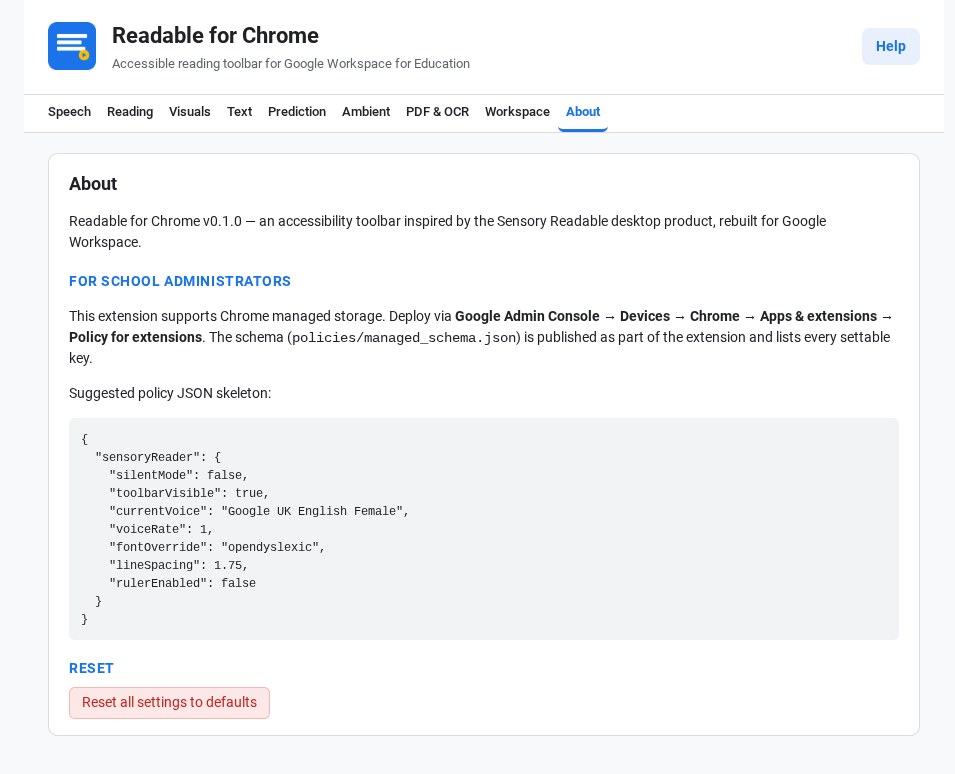
Pre-configure every setting
The full Settings page is exposed to Chrome's managed-policy schema. Push a JSON config through Google Admin Console and the extension applies it to every device in the OU.
- Voice, rate, pitch, volume — set the school default.
- Toolbar visibility, position, colour mode — match your house style.
- Font, spacing, colour overrides — start every learner with sensible defaults.
- OCR language — pre-select for the school's dominant language.
- Dictionary on/off — disable for schools with strict outbound policies.
- PDF auto-open — make Readable the default for every PDF link.
Lock what you need to.
Any setting set via managed policy appears in the Settings page with a 🔒 icon — students can see it but can't change it. Lock the high-value bits (silent mode, toolbar visibility, dictionary), leave the rest free.
- Per-OU scoping — different defaults for primary vs secondary, exam vs non-exam years.
- Reset all settings button on the About tab — clears any user changes back to managed defaults. Useful for shared devices and end-of-year wipes.
- Version pinning — pin a known-good version during exam season via Apps & Extensions → Updates.
What stays on the device — which is most of it.
Readable for Chrome is suitable for FERPA, COPPA and GDPR environments when deployed by a school.
| Feature | Where it runs | What leaves the browser |
|---|---|---|
| Text-to-speech | Browser / OS speech engine | Nothing. Spoken text never leaves the device. |
| OCR | On-device WebAssembly worker | Nothing. Captured pixels and recognised text never leave the browser. |
| Predictive typing | In-browser word-frequency lookup | Nothing. Typed text never leaves the device. |
| PDF viewer | In-browser pdf.js | The PDF, fetched directly by the viewer. No intermediate server. |
| Ambient sound | Bundled audio files | Nothing. Audio is part of the extension. |
| Dictionary | Online lookup service | The looked-up word. Optional, admin-disablable. |
| Settings | chrome.storage.sync |
Settings, encrypted by Chrome and synced to the user's own Google account. No third-party sync. |
One tool, whole-school reach.
Lower per-student cost
Competitively priced for school licences — site-wide deployment without per-seat creep. Contact us for a quote tailored to your school size.
Whole-school benefit
Universal Design for Learning principle: features designed for specific learners (TTS, tints, ruler, fonts) help any student under load. Deploy to all, not just to those with formal plans.
Lower training overhead
One toolbar, used the same way on every web page, every Doc, every PDF. One thing for staff to learn and support.
Established vendor
Sensory App House has built accessible reading software for over a decade — with deployments across the UK, US and Australia.
Privacy-first
On-device processing for almost every feature. Strong defensible posture for parents, governors, and DPO conversations.
Evidence available
Request a pilot evaluation and we'll work with your team to gather usage and impact data over your trial period.
Frequently asked questions
- How is Readable for Chrome priced?
- School-licence pricing is competitive and scales with your fleet size. There is no per-feature tiering — every school gets every feature. Request an evaluation for a quote.
- Can we trial it before committing?
- Yes. Individual users can install free from the Chrome Web Store at any time. For managed deployment trials across a fleet, request an evaluation and we'll set you up with a pilot OU and walk through the policy schema with your IT lead.
- What student data does Readable for Chrome collect?
- None off-device, except for one optional outbound call: the dictionary lookup, which can be disabled via managed policy. Text-to-speech, OCR, predictive typing, the PDF viewer, and ambient sounds all run locally. Settings sync via the student's own Google account through Chrome's encrypted sync — no third-party sync.
- How is it deployed?
- Through Google Admin Console → Devices → Chrome → Apps & extensions. Force-install on managed devices, optionally pin to the toolbar. Managed-policy JSON pre-configures every setting; per-OU scoping lets you differentiate by school, year group or class. Full schema documented in the help guide.
- What languages does OCR support?
- English, French, Spanish, German, Italian and Portuguese are built in. Additional languages can be deployed by your IT administrator on managed devices — contact us for the current list and deployment instructions.
- Does it work with Google Docs?
- Yes — Docs, Slides, Forms, Classroom, Gmail, Drive previews, Meet captions, Keep and Sites are all supported. Docs and Slides render text to canvas; Readable reads them via Google's annotated-canvas accessibility tree plus a copy-based bridge.
- What happens on
chrome://pages? - Chrome restricts extensions from running on its own pages, the Chrome Web Store, and other extensions' settings pages. Readable can't override this — but the toolbar reappears on the next normal page.
- Does it work offline?
- Mostly yes. Text-to-speech, OCR, predictive typing, the PDF viewer and ambient sounds all run locally without an internet connection. Only the dictionary requires a network call, and it's optional.
- How are updates handled?
- The Chrome Web Store auto-updates the extension on managed devices. To pin a specific version (e.g. for a known-good configuration during exam season), use Apps & extensions → Updates in the Admin Console.
- Is OpenDyslexic bundled with the extension?
- No — OpenDyslexic and Atkinson Hyperlegible need to be installed on the device for the font override to work. On managed Chromebooks, your IT administrator can pre-install them via Google Admin Console; on personal devices, they install via the operating system's font manager.
Talk to us about your school.
An evaluation request goes to a real person — usually within one working day — to set up a pilot tailored to your school size and needs.